
Add a Product from the Catalog
The catalog system contains many thousands of products across multiple industries, and while it is n

 March 03, 2026
The Vendor Portal allows vendors to upload and manage their product catalog data. This article is for vendors, suppliers, and distributors who provide stock for Quilt Software client stores. It covers what you need to know to get started and successfully upload your catalog files.
Please Note: The Vendor Portal is currently in Beta and is not available for all stores at this time. After Beta testing is completed, the feature will be release for any stores that wish to use it.
You can access the Vendor Portal at vendors.rainpos.com/login.
When your representative creates your vendor profile, you'll receive a Setup Password email. Click the button in the email to create your password and gain access to the portal. Here is what you'll see:
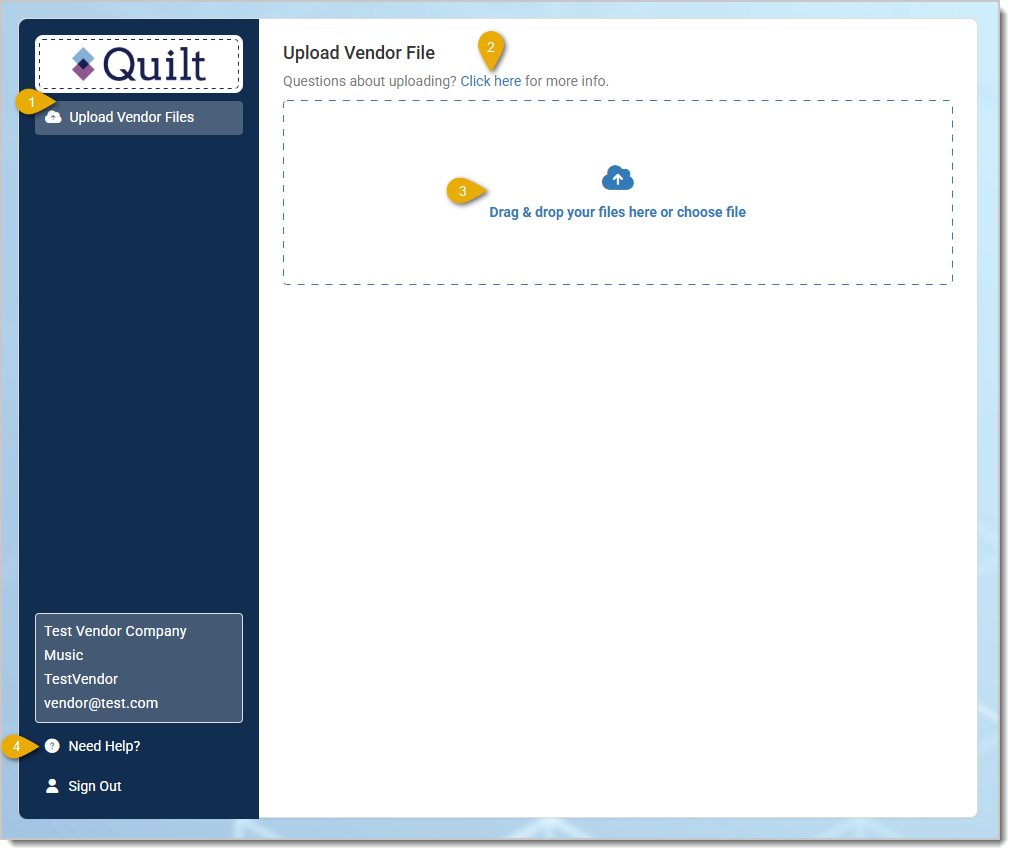
After logging in, you'll land on the Upload Vendor File page. This is where you can upload a .csv file containing your product catalog data.
Only .csv files are accepted. Any other file type will be rejected. You can only upload one file at a time and must wait for it to finish processing before uploading another.
After uploading, you'll receive an email letting you know whether your upload was successful or if there were errors. You can click the link in the email to return to the portal and view detailed status information, including any specific errors and how to fix them.
To get started, download the CSV template with the correct headers already in place: Download CSV Template
Every file must include Product Title and a product identifier. Depending on how your account is configured, your required identifier will be either UPC or Manufacturer Number. If you're unsure which applies to you, check with your representative.
| Column | Example Value | Format Rules |
|---|---|---|
| Product Title | Standard Product Name |
Text, max 255 characters |
| UPC | 012345678905 |
8–14 digits, numeric only |
| Manufacturer Number | MFG-1001 |
Free text |
| Column | Example Value | Format Rules |
|---|---|---|
| SKU | PROD-001 |
Text, max 255 characters |
| Manufacturer Name | Acme Supply |
Text, max 100 characters |
| Product Description | <p>Description here</p> |
Free text, HTML supported |
| SEO Meta Description | Reliable everyday product |
Text, max 255 characters |
| Price or MSRP | 49.99 |
Number, max 2 decimal places, no currency symbols |
| Default Cost | 25.00 |
Number, max 2 decimal places, no currency symbols |
| Categories | "General Merchandise,Featured Items" |
Comma-separated values. Wrap in quotes if using multiple values. |
| Images | "https://example.com/img1.jpg,https://example.com/img2.jpg" |
One or more URLs, comma-separated. First image becomes the main image. Wrap in quotes if using multiple values. URLs must start with http:// or https:// |
| Height | 10.00 |
Number, max 2 decimal places |
| Width | 5.50 |
Number, max 2 decimal places |
| Length | 8.25 |
Number, max 2 decimal places |
| Weight | 2.75 |
Number, max 2 decimal places |
If you have questions or run into issues, click the Need Help? link in the bottom left of the portal. This will show you your assigned representative's name and email address so you can reach out to them directly for assistance.
Is this page helpful?
×Help us improve our articles